lane assist TESLA MODEL X 2016 Owner's Manual
[x] Cancel search | Manufacturer: TESLA, Model Year: 2016, Model line: MODEL X, Model: TESLA MODEL X 2016Pages: 179, PDF Size: 4.3 MB
Page 47 of 179

8. Use the right steering wheel buttons to change what displays on the right side of theinstrument panel whenever a phone call is not active (see Using Left Steering Wheel Buttons
on page 37).
9. Total estimated driving distance (or energy) available. Instead of driving distance, you can display the percentage of battery energy remaining. To do so, touch Controls > Settings >
Units & Format > Energy & Charging (see Settings on page 101).
Note: When anticipating when you need to charge, use range estimates as a general guideline only.
Note: In cold weather, some of the stored energy in the Battery may not be available on your drive because the Battery is too cold. When this happens, a portion of the Battery meter isblue and the driving distance value has a
snowflake image next to it. If Model X is plugged in,
you can heat your Battery using wall power by turning on climate control using the mobile app. When the Battery warms up, the blue portion on the meter and the
snowflake image are
no longer displayed.
10. The speed limit (if available) that is currently being detected by Speed Assist (see Speed
Assist on page 91).
11. The car in front of you (if applicable).
12. Pay attention to important driving-related messages that appear at the bottom center of the instrument panel.
13. Your Model X.
14. When Autosteer is active, the driving lane is highlighted in blue (see Autosteer on page 80).
The lane may highlight in red If a front wheel passes over a lane marking and the associated
turn signal is
off (see Lane Assist on page 86).
15. Currently selected gear: Park, Reverse, Neutral, or Drive.
Instrument Panel
Driving47
Page 75 of 179
If Model X is equipped with Driver Assistance
components (see About Driver Assistance on
page 72) and you have purchased the optional Autopilot Tech Package, the forward lookingcamera and the radar sensor are designed to
determine when there is a vehicle in front of
you in the same lane. If the area in front of Model X is clear,
Traffic-Aware Cruise Control
maintains a set driving speed. When a vehicle
is detected,
Traffic-Aware Cruise Control is
designed to slow down Model X as needed to
maintain a selected time-based distance from
the vehicle in front, up to the set speed.
Traffic-Aware Cruise Control does not
eliminate the need to watch the road in front
of you and to apply the brakes when needed.
Traffic-Aware Cruise Control is primarily
intended for driving on dry, straight roads,
such as highways and freeways. It should not
be used on city streets.
Warning: Traffic-Aware Cruise Control is
designed for your driving comfort and
convenience and is not a collision warning or avoidance system. It is your
responsibility to stay alert, drive safely,
and be in control of the vehicle at all
times. Never depend on
Traffic-AwareCruise Control to adequately slow down
Model X. Always watch the road in front
of you and be prepared to take corrective
action at all times. Failure to do so can
result in serious injury or death.
Warning: Do not use Traffic-Aware Cruise
Control on city streets or on roads where
traffic conditions are constantly changing
and where bicycles and pedestrians are
present.
Warning: Do not use Traffic-Aware Cruise
Control on winding roads with sharp
curves, on icy or slippery road surfaces, or
when weather conditions (such as heavy
rain, snow, fog, etc) make it inappropriate
to drive at a consistent speed.
Traffic-
Aware Cruise Control does not adapt
driving speed based on road and driving
conditions.
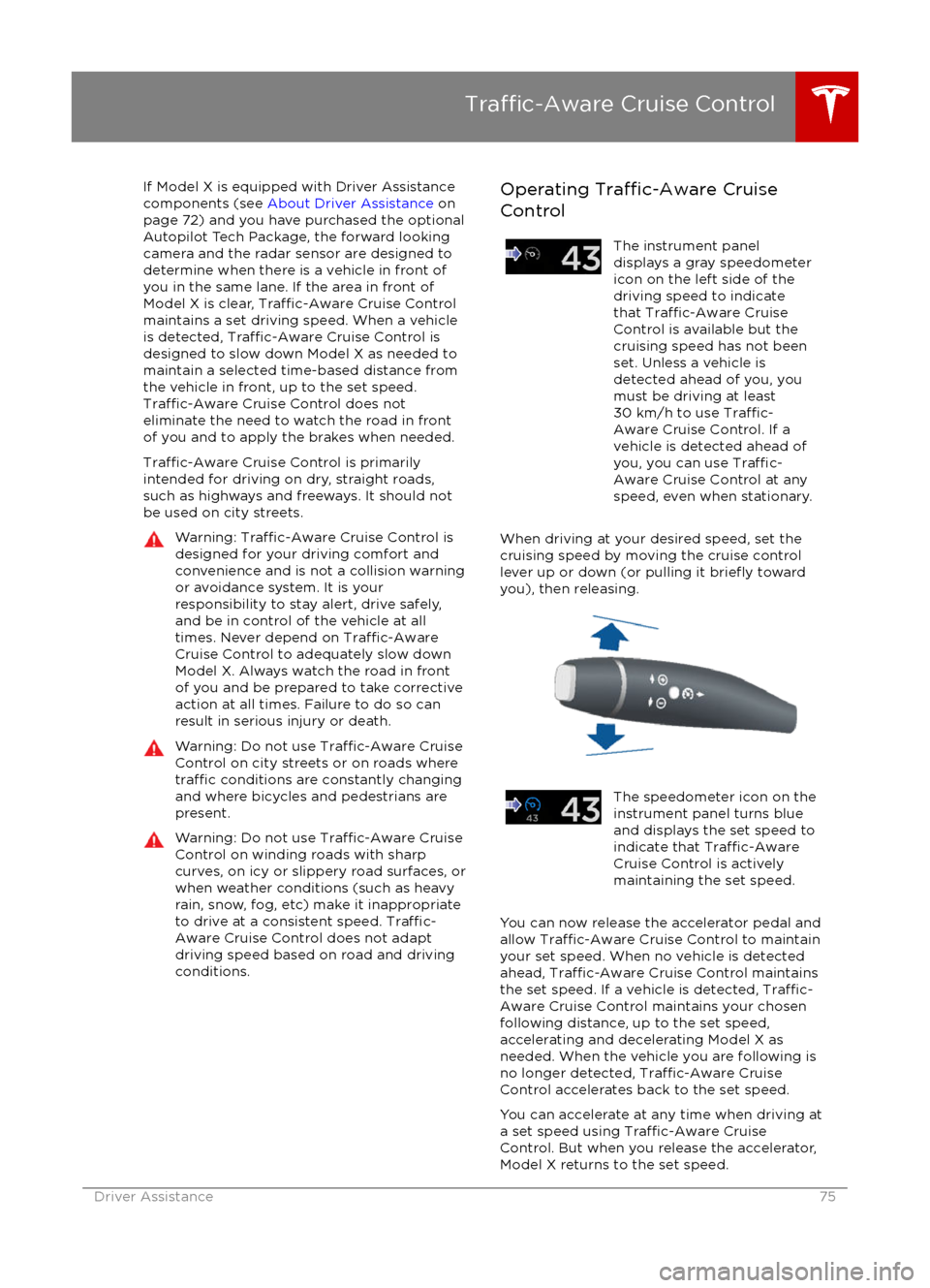
Operating Traffic-Aware Cruise
ControlThe instrument panel
displays a gray speedometer
icon on the left side of the
driving speed to indicate
that
Traffic-Aware Cruise
Control is available but the
cruising speed has not been
set. Unless a vehicle is
detected ahead of you, you
must be driving at least
30 km/h to use
Traffic-
Aware Cruise Control. If a
vehicle is detected ahead of
you, you can use
Traffic-
Aware Cruise Control at any
speed, even when stationary.
When driving at your desired speed, set the cruising speed by moving the cruise control
lever up or down (or pulling it
briefly toward
you), then releasing.
The speedometer icon on the
instrument panel turns blue
and displays the set speed to
indicate that
Traffic-AwareCruise Control is actively
maintaining the set speed.
You can now release the accelerator pedal and
allow Traffic-Aware Cruise Control to maintain
your set speed. When no vehicle is detected ahead,
Traffic-Aware Cruise Control maintains
the set speed. If a vehicle is detected, Traffic-
Aware Cruise Control maintains your chosen
following distance, up to the set speed,
accelerating and decelerating Model X as
needed. When the vehicle you are following is
no longer detected,
Traffic-Aware Cruise
Control accelerates back to the set speed.
You can accelerate at any time when driving at
a set speed using
Traffic-Aware Cruise
Control. But when you release the accelerator,
Model X returns to the set speed.
Traffic-Aware Cruise Control
Driver Assistance75
Page 80 of 179

Note: Autosteer is a BETA feature in Release
7.0.
If Model X is equipped with Driver Assistance
components (see About Driver Assistance on
page 72), and you have purchased the optional Autopilot Tech Package, you can use
Autosteer to manage steering and speed under certain circumstances. Autosteer builds
upon
Traffic-Aware Cruise Control,
intelligently keeping Model X in its driving lane
when cruising at a set speed. Using the
forward looking camera, the radar sensor, and
the ultrasonic sensors, Autosteer detects lane
markings and the presence of vehicles and
objects, assisting you in steering Model Xbased on the lane markings and the vehicle
directly in front of you.
Warning: Autosteer is a hands-on feature.
You must keep your hands on the steering
wheel at all times.Warning: Autosteer is intended for use
only on highways and controlled-access roads with a fully attentive driver. Holdthe steering wheel and be mindful of road
conditions and surrounding
traffic while
using Autosteer. Do not use Autosteer on
city streets or in areas where bicyclists or
pedestrians may be present. Never depend on Autosteer to determine an
appropriate driving path. Always be
prepared to take immediate action.
Failure to follow these instructions could
cause serious property damage, injury or
death.
Operating Autosteer
Before you can operate Autosteer, you must
enable it by touching Controls > Settings > Driver Assistance > Autosteer > Enable. You
can also choose whether you want to hear a chime when Autosteer is enabled or disabled.
To indicate that Autosteer is available (but notactively steering Model X), the instrumentpanel displays a gray Autosteer icon on theright side of the driving speed as shown here:
To initiate Autosteer, pull the cruise control
lever toward you twice in quick succession. Autosteer
briefly displays a message on the
instrument panel reminding you to pay
attention to the road and have your hands on
the steering wheel. To indicate that Autosteer
is now actively assisting in steering Model X, the instrument panel displays the Autosteericon in blue. When Autosteer is able to detectlane markings, it also displays the driving lane
in blue:
Note: To initiate Autosteer, you must be
driving at least 30 km/h on a roadway with
visible lane markings. If a vehicle is detected ahead of you, you can initiate Autosteer at any
speed, even when stationary.
Note: When using Autosteer on residential
roads, or any road without a center divider,
driving speed is limited to a maximum of
70 km/h. When Autosteer detects that you are
driving on these types of roads, it reduces the speed to 70 km/h, if necessary, even if the set
cruising speed is higher. If you use the
accelerator pedal to increase driving speed
above 70 km/h, Autosteer sounds a repeated chime. When you leave the residential road (or
road without a center divider), or disengage
Autosteer by using the steering wheel, Model S resumes cruising at the set speed.
Note: In most cases, Autosteer attempts to
center Model X in the driving lane. However, if
the sensors detect the presence an obstacle (such as a vehicle or guard rail), Autosteer
may steer Model X in a driving path that is
offset from the center of the lane.
Autosteer
80Model X Owner
Page 82 of 179

If Model X is equipped with Driver Assistance
components (see About Driver Assistance on
page 72), and you have purchased the
optional Autopilot Tech Package, you can use
Auto Lane Change to move Model X into an adjacent lane. When both
Traffic-AwareCruise Control and Autosteer are active, Auto
Lane Change intelligently assists you in
steering Model X into an adjacent driving lane.
Using the forward looking camera, the radar
sensor, and the ultrasonic sensors, Autosteer
detects lane markings and the presence of other vehicles.
Auto Lane Change is designed for use on highways and main roads with visible lane
markings and under relatively predictable circumstances in which minimal steering and
driver intervention is needed.
Warning: It is the driver
Page 83 of 179

Note: Auto Lane Change assists in movingModel X one lane at a time. Moving into an
additional lane requires you to engage the
turn signal a second time when the
first lane
change is complete.
Warning: If Auto Lane Change can not
detect the outside of the target lane
midway through the lane change, both
Auto Lane Change and Autosteer will cancel. The instrument panel displays a
message instructing you to take over the
steering wheel immediately.
When Auto Lane Change is active, it is
important to monitor its performance by
watching the driving path in front of you. Stay
prepared to take over steering at any time. On the instrument panel, the lane you are crossing
over displays as a dashed blue line and once in your new lane, the lane markings display as
solid blue lines.
In situations where Auto Lane Change is
unable to operate at optimal performance, or
can not operate due to inadequate data, the
instrument panel displays a series of warnings.
Therefore, when using Auto Lane Change,
always pay attention to the instrument panel
and be prepared to manually steer Model X.
Warning: When Auto Lane Change is
actively assisting in steering Model X, the steering wheel moves accordingly.
Although you must have your hands on
the steering wheel, any
significantrestriction of the steering wheel
Page 86 of 179

If Model X is equipped with Driver Assistance
components (see About Driver Assistance on
page 72), the forward looking camera
monitors the markers on the lane you are
driving in, and the ultrasonic sensors monitor
the blind spot for the presence of a vehicle. To
help you stay in your driving lane and to avoid
side collisions, Lane Assist provides two types of warnings:
Page 87 of 179

Controlling Lane Assist Warnings
To turn Lane Departure Warning on or
off,touch Controls > Settings > Driver
Assistance > Lane Departure Warning.
To turn Side Collision Warning on or
off, touch
Controls > Settings > Driver Assistance > Side
Collision Warning.
Note: Your chosen settings are retained until
you manually change them. They are also saved in your driver
profile.
Limitations and Inaccuracies
Lane Assist can not always clearly detect lanemarkings and you may experience
unnecessary or invalid lane departure
warnings in these situations:
Page 175 of 179
AABS (Anti-lock Braking System) 54
Acceleration (dual motor) 97
access panel, removing 146accessoriesinstalling 150
plugging into power socket 114
active hood 61
adaptive headlights 51
air circulation 106
air conditioning 105
air distribution 106
air
filter 109
air suspension 111
air vents 109
airbag, front passenger, disabling 34
airbags 32
alarm 121
all-season tires 135
always connected, setting 63
antennas 9
anti-lock braking (ABS) 54
audioplaying files 112
steering wheel buttons 37
volume control 112
Auto High Beam 51
Auto Lane Change 82
auto-raising suspension 110
Autopark 84
Autopilot 72
Autosteer 80
B
backup camera 65
battery (12V)complete discharge 127specifications 158Battery (high voltage)care of 127
coolant 146
specifications 159
temperature limits 127
battery (key), replacing 5
blind spot warning 86
Bluetoothdevices, playing audio files from 113
general information 115
phone, pairing and using 115
body repairs 150
body touch up 144
brake
fluid replacement 132
brakesautomatic in emergencies 88fluid level 147
overview of 54brakes (continued)specifications 158
brightness of displays 101
C cabin temperature control 105
calendar 119
camera (rear view) 65
car cover 144
car washes 142
Cargo Mode 20
cargo space, maximizing 20
carpets, cleaning 143
CE
certifications 173
CHAdeMO 126
chains 136
change of ownership 104
charge port 128
charge port light 129
chargingcharge settings 130
components and equipment 125
instructions 128
public charging stations 126
scheduling 130
status of 131child protectiondisabling liftgate and rear door handles 9
disabling rear window switches 11child seatscleaning 143
disabling front passenger airbag 34
installing and using 24
cleaning 142
climate controls 105
climate ionizer 101
clock 37
Cold Weather controls 97
collision avoidance assist 88
console12V power socket 114
cup holders 17
USB ports 114contact informationroadside assistance 163coolantBattery, checking level of 146
Battery, replacement interval 132
copyrights 166, 167
Creep 97
cruise control 75
cup holders 17
customizing 101
Index
Index175
Page 176 of 179
D
dashboard overview 2
data recording 168
day mode 101
declarations of conformity 173
delivery mileage 168devicesBluetooth, playing audio files 113
connecting 114
playing audio
files from 113
dimensions 155
display brightness 101
dome (map) lights 48
door labels 152
Door Unlock Mode 4
doors 4
doors, opening 4
Drive gear 42
drive-away locking 9
driverprofiles 36
seat adjustment 18driver assistanceAuto Lane Change 82
Autopark 84
Autosteer 80
blind spot warning 86
collision avoidance assist 88
forward collision warning 88
overtake acceleration 75
overview 72
settings for 101
side collision avoidance 86
side collision warning 86
staying inside lane markings 86
Traffic-Aware Cruise Control 75
drivingseating position 18
starting 41
tips to maximize range 63
E
electric parking brake 55
emergency
flashers 52
energygained from regenerative braking 55
range information 43, 46
tips to minimize usage of 63
energy & charging setting 101
energy app 63
energy saving mode 63
Erase & Reset 104
event data recording 168
exteriorcar cover 144
cleaning 142exterior (continued)dimensions 155
lights 48
overview 3
polishing, touch up, & repair 144
F
factory defaults, restoring 104
factory reset 104
fan speed, interior 106
favorites, adding and removing 113
FCC
certifications 173
features, downloading new 123
firmware (software) updates 123flash drives, playing audio files from 113flashers, warning 52flat tire repair 138floor mats 144
fluidsreplacement intervals 132
reservoirs, checking 146
fog lights 48
forward collision warning 88
front passenger detection 34
front trunk 14
fusesremoving access panel 146
G
GAWR 153
gears 42
glove box 16
Gross Axle Weight Rating 153
Gross Vehicle Weight Rating 153
ground clearance 155, 156
GVWR 153
H hazard warning
flashers 52
head restraints 20
headlightsadaptive 51
after exit 51
high beams 51
heated wipers 53
heating 105
height adjustments (suspension)auto-raising 110
automatic and manual settings 111
disabling (Jack mode) 111
high beam headlights 51
high voltageBattery specifications 159
Index
176Model X Owner
Page 177 of 179

high voltage (continued)components 125
safety 132
hills, stopping on 59
hood 14
horn 39
I IC
certifications 173identification labels 151
Insane setting (dual motor) 97
instrument panelcharging status 131
cleaning 143
overview of 43, 46interiorcleaning 143
dimensions 156
lights 48
overview 2
temperature control 105
Internet radio
112
intrusion detection 121
ionizer 101
ISOFIX child seats, installing 28
J
J1772 126
Jack mode 111
jacking 149
K
keyFCC and IC certifications 173
how to use 4
key not inside 41
ordering extras 6
replacing battery 5
keyless entry 4
L
labelStatutory Plate 153
Tire and Loading Information 153
lane assist 86
lane change flash 52
lane change, automatic 82
lane departure warning 86
language setting 101
Launch Mode 60
liftgateliftgate (continued)adjust opening height 12
opening 12
lifting 149
lightsadaptive headlights 51
hazard warning 52
headlights after exit 51
turn signals 51
load limits 152
location-based suspension 110
locking and unlocking doors 4
lumbar support 18
M
maintenancebrake fluid, checking 147
cleaning 142
daily and monthly checks 132
fluid replacement intervals 132
panel, removing 146
replacing wipers 145
service intervals 132
tires 133
washer
fluid, topping up 147
map data, proprietary notice 169
maps 117
mats 144
media 112
mileage upon delivery 168
mirrors 40
mobile app 124
Mobile Connectordescription 126
using 128
modifications 150
motor specifications 157
N
naming 104
navigation 117
NCC
certifications 173
Neutral gear 42
night mode 101
nose cone, removing 165
O
odometerresetting trip odometer 62
outside temperature 37
overhang dimensions 155
overtake acceleration 75
Owner Information, about 166, 167
Index
Index177